
Android Security Updates for Device Fleets: Who Patches the Box?
Every Android device in your business has a date hidden in its settings: the security patch level. On a phone, someone usually notices when it gets old. On a TV box behind a menu screen, a tablet locked to a check-in app or a player bolted to a bus ceiling, nobody looks. The device keeps working, the date keeps ageing, and the fleet slowly becomes a list of computers that nobody has patched in years.
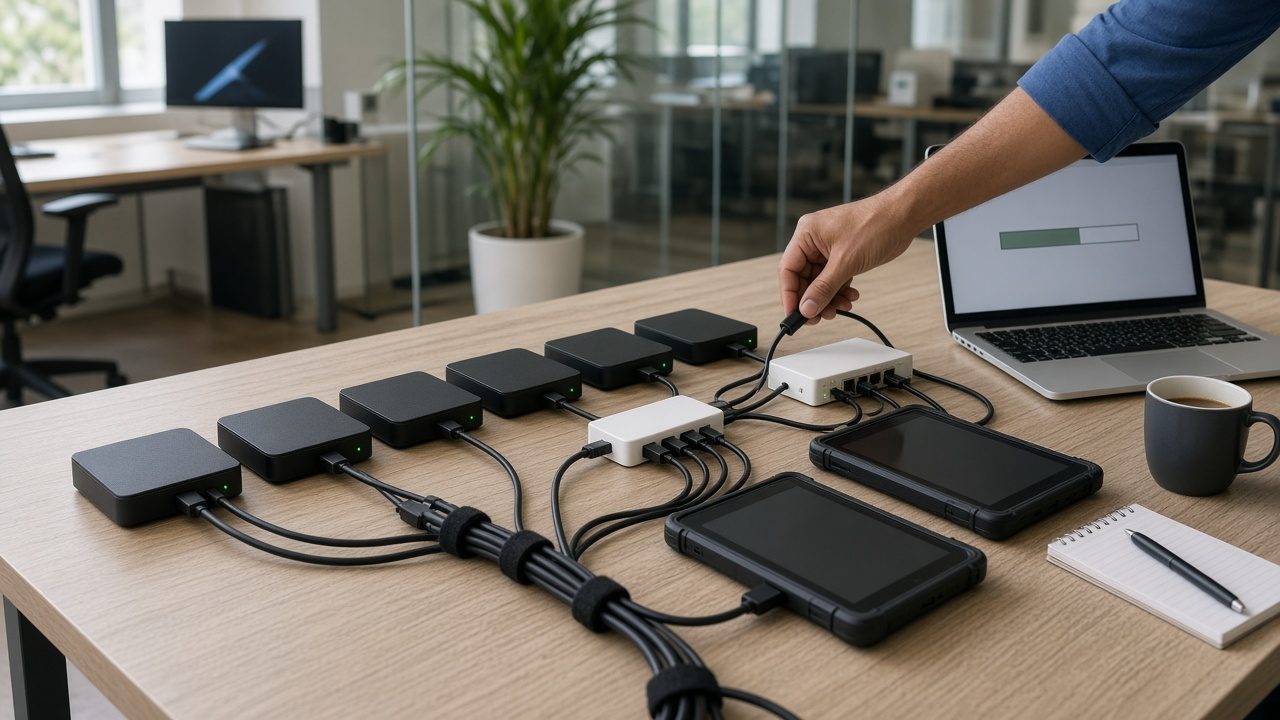
Working is not the same as patched
Business Android devices rarely fail loudly. A kiosk on last year’s patch level still opens the same app. A signage player that has never been updated still plays the playlist. That is exactly why updates get skipped. The risk does not show on the screen.
Yet these devices sit on your network. Many are in public places where anyone can reach a USB port or a Bluetooth pairing prompt. Some connect to payment, attendance or customer systems. An unpatched device is not only a weakness in itself; it can be a way into whatever it is connected to.
The good news is that Android security patch management for a business fleet is mostly a planning problem, not a technology problem. It comes down to four questions: what Android version and patch level each model runs, who builds updates for it, how updates reach the devices, and when a model should be retired.
How Android updates actually reach a device
Google publishes the Android Security Bulletin every month, normally on the first Monday. Each bulletin lists fixes and a security patch level date, such as 2026-10-01. That bulletin is the start of the chain, not the end of it.
- Google publishes fixes for the Android platform.
- The chipset vendor supplies fixes for its own drivers and components inside the device.
- The device maker or firmware owner builds those fixes into a firmware image for that specific model, tests it and releases it.
- Your team or your device partner gets that image onto the devices in the field.
If any link is missing, the fix never reaches the box. This is why two devices with the same Android version can have very different patch levels. For phones from large brands the chain is usually visible. For TV boxes, signage players and industrial tablets, it often depends on a smaller supplier, and it is the question buyers most often forget to ask.
Start with an honest inventory
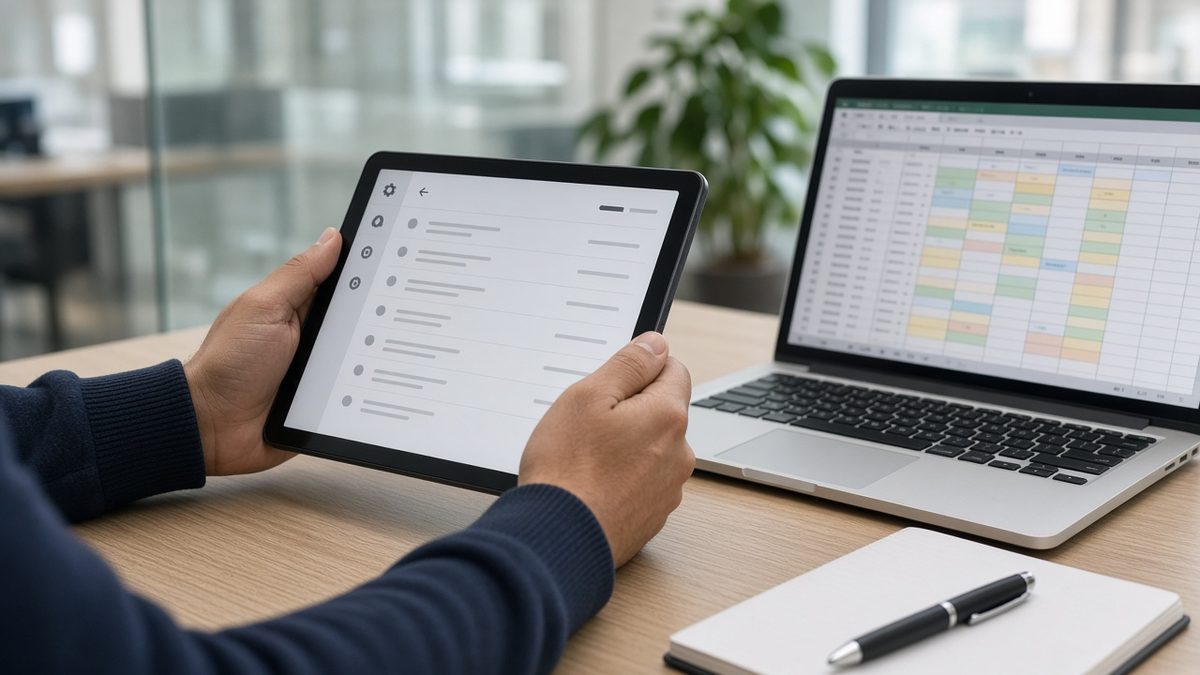
You cannot plan updates for devices you cannot list. Before any policy, build one table for the whole fleet:
- Model and hardware variant, including chipset where you know it.
- Android version, for example Android 11, 13 or 15.
- Security patch level, read from Settings under About or Security.
- Firmware owner: who can build a new image for this model, and how you contact them.
- Job and location: menu board, attendance tablet, lobby player, and which site.
The table usually tells an uncomfortable story. Three or four models make up most of the fleet, one older model has no clear firmware owner, and patch levels vary within the same model because some units were never updated after installation. That is the starting point for the plan.
Buy the update path with the hardware
The best time to solve updates is before the purchase order. When you compare TV boxes, tablets or touch displays, ask the supplier directly:
- Which Android version does it ship with, and is a newer one planned for this model?
- Who builds security updates for this firmware, and how are they delivered?
- How are firmware images labelled, so a field unit can be identified when something breaks?
- What happens to update support if the chipset or model is discontinued?
Starting on a current Android release helps. The HORON H15 Plus, for example, ships with Android 15, which gives a newer baseline than many boxes still sold on older versions. A current version is a better starting point, not a guarantee; the update question still has to be answered for each model you buy.
Where a fleet runs a custom launcher, a locked boot experience or a branded image, the firmware is yours to maintain as much as the supplier’s. Maram’s custom hardware and firmware work puts emphasis on version discipline: which Android baseline you target, how updates are tested, how images are labelled and how field units are identified. Without that, “custom firmware” becomes a pile of one-off builds that nobody dares to update.
Update in rings, inside a window
Updating a whole fleet at once is how a small bug becomes a hundred dark screens. Use rings instead:
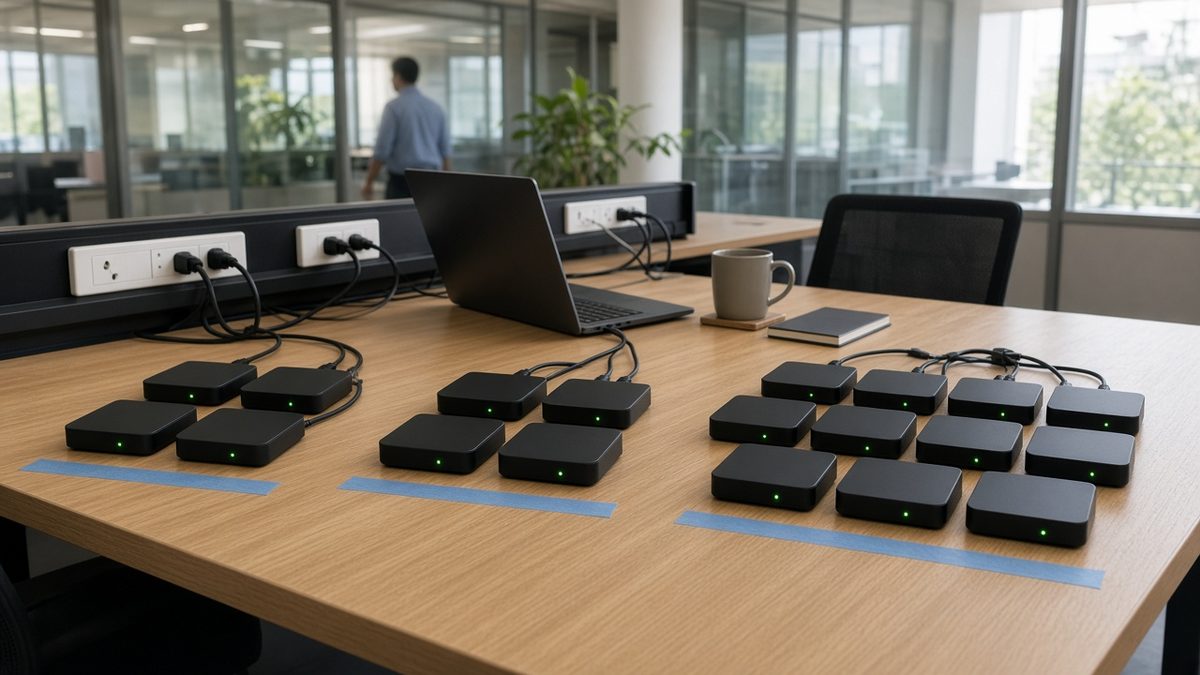
- Test bench. Two or three units of each model in the office, running the real app or playlist, updated first.
- Pilot ring. A small group of live devices, ideally at one site with staff who will report problems quickly.
- Main fleet. Everything else, released only after the pilot has run for an agreed period without issues.
Each ring should update inside a window that suits the job. A menu board can update after closing. A school tablet can update during holidays or late evenings. A bus player can update at the depot. Never let an update start in the middle of service just because the device happened to be online.
Write down what “good” means after an update: the device boots, returns to the approved app or playlist without help, keeps its network settings, and stays locked down. Check those on the test bench every time, because a firmware update can reset settings that a kiosk depends on.
Make the fleet visible from one console
Rings and windows are only practical if someone can see the fleet as groups rather than as individual boxes. A device management console is where that structure lives: which devices belong to the test, pilot and main groups, which policies apply, and which units have gone quiet after an update.
Maram’s DCM Console is built for that device layer. It covers inventory, group-based policies, update windows that respect business hours and remote visibility of device status, so support can see a problem before a site calls. The policy side of Android management, such as dedicated device modes and app control, is covered in Android Enterprise for device fleets; patching depends on that same grouping and naming discipline.
Name devices by job and place, such as “Madhapur lobby player 2”, and keep the model and firmware version in the record. When an update causes trouble, you want to know in minutes which devices received it.
Know when to retire a model
Every device model eventually stops receiving updates. That is not a failure; it is a lifecycle. The failure is not noticing. Mark each model in your inventory with one of three states:
- Supported: updates are still being built and tested for it.
- Watch: updates have slowed or the supplier has announced an end date. Stop buying it for new sites.
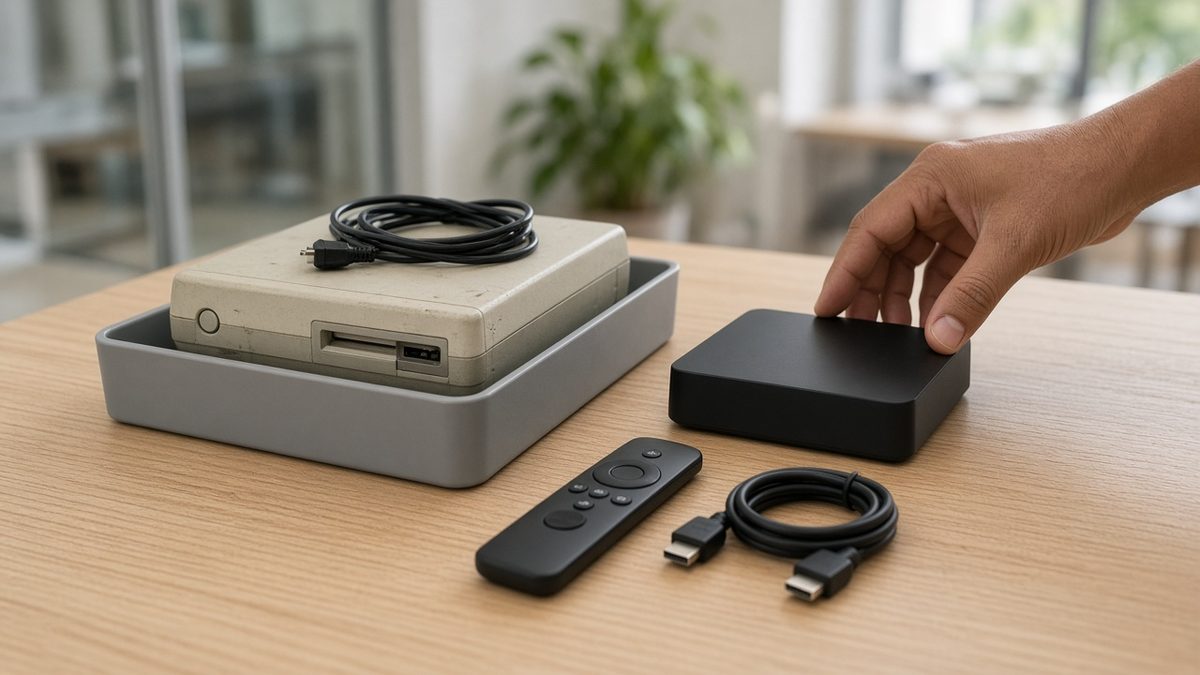
- Retire: no further updates are expected. Plan replacement, starting with devices in public places or connected to sensitive systems.
Budget replacements as a cycle rather than an emergency. A device that only plays a cached playlist on an isolated network carries less risk than a tablet that handles customer data on the main network, and can reasonably stay longer. Make that judgement per job, and write it down so the next person knows why an old unit is still in service. The rollout side of a replacement, from mounting to spares, is covered in the hardware deployment planning guide.
A short checklist for this quarter
- Read and record the Android version and security patch level of one unit of every model you run.
- Name the firmware owner for each model. Mark any model without one.
- Set up a test bench and a pilot group, and agree an update window for each device job.
- Add the update question to your next hardware purchase checklist.
- Mark each model as supported, watch or retire, and put the retire list in next year’s budget.
Frequently asked questions
Treat patching as part of owning the device
Android devices in a business are computers on your network, even when they look like a TV box or a sign. Know what each one runs, know who can update it, update in rings inside planned windows, and retire models before they become the weakest point. Plan that once, and every new device fits into the same routine.
Review your fleet's update plan
Tell us which Android models you run, how many sites they sit in, and who builds or approves updates today. We reply with a practical update and support plan within one business day.