
Android MDM for Kiosks: Lock the Screen to One Job
A kiosk is not a tablet that happens to sit on a counter. It is a screen with one allowed job. Android MDM is what keeps that job in front of the visitor when someone taps the corners, the power blinks, or the shop network drops for an hour. The same idea covers menu boards, check-in desks, lobby players and lesson tablets, in one city or across countries.
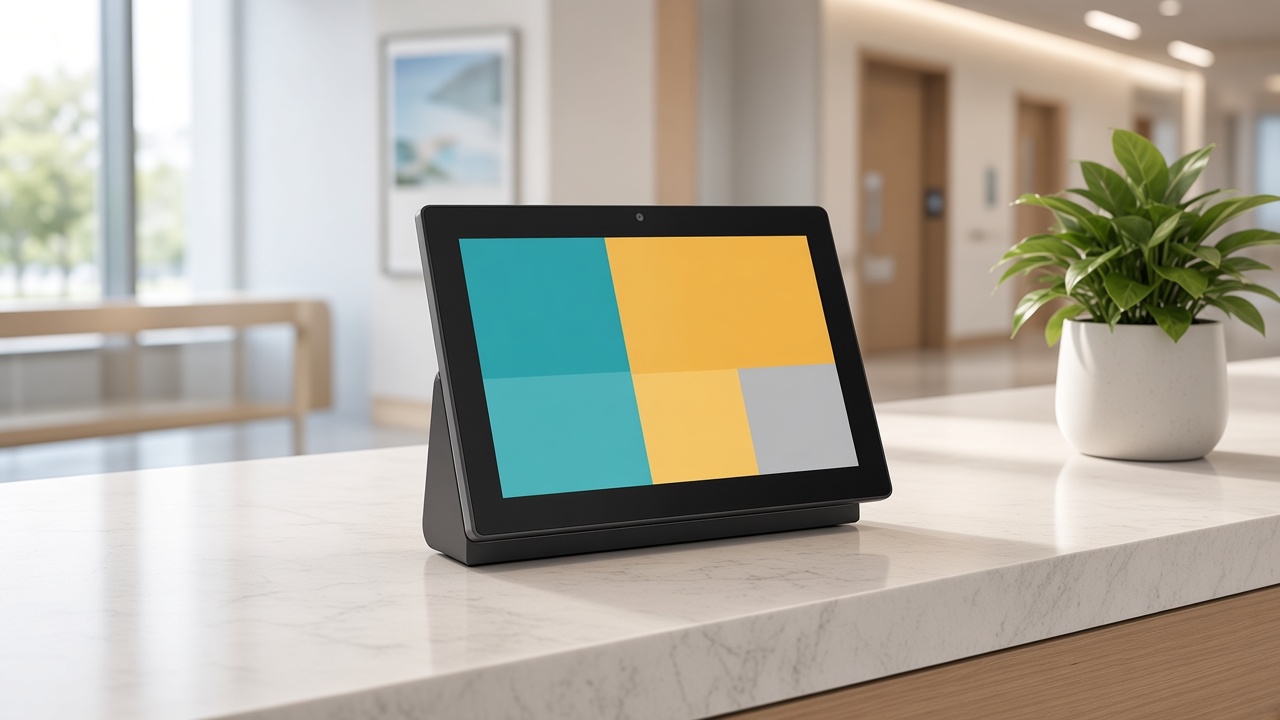
Pick the kiosk you actually run
The same lockdown phrase covers very different rooms. A menu board must not open a browser. A check-in tablet must not show the home screen after a reboot. A classroom device is a kiosk only during the lesson. Choose the job. The panel says what the device is allowed to do, and the failure that shows up in the first week.
Which screen is this?
Whatever you picked, the product that holds the policy is a device console, not a slide deck. DCM Console is Maram’s Android MDM for this kind of fleet: enrollment, kiosk control and a view of which screens are actually up. If the job is a playlist rather than a single app, pair that with digital signage software so publishing and lockdown are not the same login.
What Android MDM means on a public screen
Mobile device management, in this setting, is the control plane for Android devices you do not want people to treat as personal phones. Enrollment puts the device into a managed state. A policy decides the allowed app, the launcher, the status bar, the settings, the cameras you do and do not need, and the window when updates may install. A console shows whether the device checked in. Remote actions cover restart, lock, wipe and a push of the next app version.
That is a different job from email and calendar management on an employee phone. An employee can unlock a phone, open settings and still do their work. A visitor who unlocks a kiosk has ended the kiosk. The policy has to assume curiosity, boredom and the occasional person who knows the gesture that opens the status bar. It also has to assume staff. The most common escape is not a hacker. It is a supervisor who learned a back door during installation and now uses it to “just check Wi-Fi.”
Android Enterprise is the platform underneath serious kiosk deployments: a work-managed device, a dedicated mode, and an app set you chose. The console is how your team operates that platform without a developer standing at every counter. Teams comparing names can read MDM versus EMM and how Android Enterprise applies to a fleet before they scale one policy across cities.
What “locked” has to survive
A home-screen pin is not a kiosk policy. After a reboot the player should return to the same app or playlist without a setup wizard. Status bar, settings and unknown sources stay closed. Updates happen in a window the store can tolerate, not in the middle of service. If the WAN fails, the last approved content keeps playing. That is the difference between a consumer tablet and a managed Android endpoint.
Test the lock the way a site will break it. Pull the power at the wall, not from a software menu. Wait a minute. Restore power. The allowed job should be on screen before a customer finishes reading the board above it. Then forget the network. Unplug the router, or forget the access point, and leave the device for the length of a typical outage in that building. Yesterday’s menu, welcome loop or check-in form should still be there. A kiosk that needs the cloud for every tap is a kiosk that fails on the worst day.
Test the human path too. Give a staff member one minute and the same information they will have after training. If they can reach settings, install a browser or join a guest network, the policy is not finished. Close the gesture, remove the spare launcher, and put the exit code with a manager rather than on a sticker under the tablet. Then test again. Policies that look complete in a console screenshot often fail this minute.
Enrollment, so the second hundred screens match the first
A pilot that is set up by hand will not survive a rollout. Every device should enter the fleet the same way: a managed enrollment, a named group, and a policy that applies before anyone from the site can open the app drawer. Zero-touch or a QR enrollment code beats a technician tapping through a setup wizard in a stock room. The wizard is where personal accounts, skipped updates and “I’ll lock it later” enter the fleet.
Group the devices by job, not only by city. Menu players, check-in tablets and lobby screens do not share one policy just because they share a brand. A lesson tablet that must open three education apps is not a menu board. DCM-style grouping lets you change the check-in app without touching the players that only run a playlist. Name the group after the job. Future you will not remember what “Batch 3” was allowed to do.
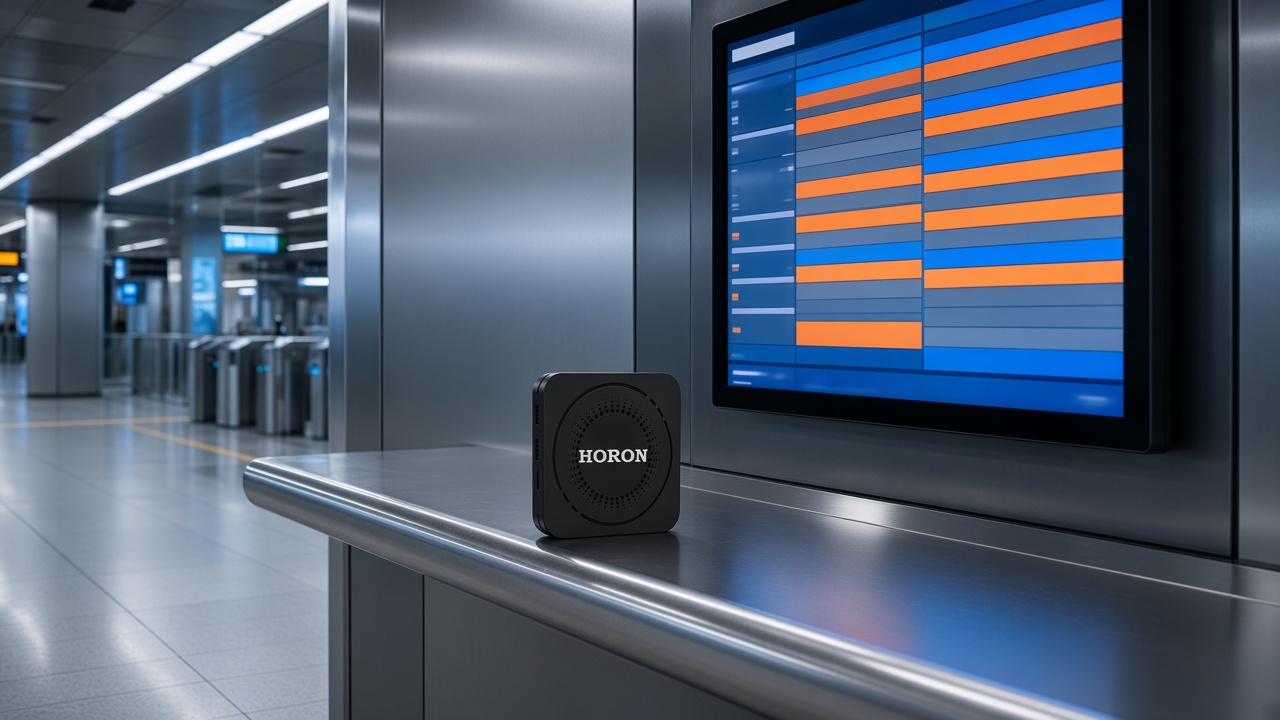
Record the hardware standard next to the policy. A commercial player such as the HORON H15 Plus and a mounted tablet such as the QPAD101 can both be managed, and they should be, when the screen lives in public. They still need different mounts, different spares and sometimes different update windows. Mixing consumer sticks into the same group looks thrifty until the stick cannot hold the kiosk mode you already approved.
The policy set worth writing down
Start with the allowed surface. One app, or one player, in the foreground. No app drawer. No settings. No status-bar path to Wi-Fi, Bluetooth or screen cast unless a technician mode exists and is itself locked. Camera, microphone and USB are allowed only when the job needs them. A check-in kiosk may need the camera. A menu board does not need a microphone that a visitor can turn into a toy.
Then write the recovery rules. Auto-start the job after boot. Cache the last approved package so a network loss does not produce a blank screen. Restart overnight if the app is known to leak memory. Install updates in a window the site can survive, and stagger them so an entire region does not reboot during the lunch rush. Keep a remote wipe for the unit that leaves the building. A kiosk tablet is easy to carry. The data on it should not be.
Then write the operating view. Someone, not “the IT group” in the abstract, should see which devices missed their last check-in. A dark screen and a screen that is playing yesterday’s emergency message are different incidents. The console should make that distinction possible. DCM Console is built around that view: the device, the policy and the question of whether the screen is up. Publishing the loop, when the job is signage, stays in the signage CMS so a marketing change does not require a device administrator.
Signage, kiosk and MDM are three decisions
Buyers often buy one login and hope it covers three jobs. A signage CMS schedules media. A kiosk app performs a transaction or a check-in. MDM keeps the Android device inside the boundary you set. You can need all three on one site. A restaurant can have a menu player, a queue display and a staff tablet. The menu is a playlist. The queue may be a web app in a locked browser. The staff tablet may leave kiosk mode only for a manager. One policy named “screens” will be wrong for at least one of them.
The cost of getting this wrong is not theoretical. A playlist tool that cannot stop a visitor opening settings will be blamed for a problem that belonged to device management. An MDM suite that cannot schedule a day-part menu will be blamed for a publishing problem. Put both products in the design, and in the budget, when the network is both. The price shape of screens, players and CMS is laid out in digital signage cost. MDM is usually a per-device subscription on top of that, and it should be named rather than discovered after the panels arrive.
Start with ten screens, not a policy document
Pilot one site. Enroll the devices, lock the allowed app, pull the power, and watch what comes back. Then disconnect the network and see whether yesterday’s menu or welcome screen is still there. If a staff member can escape to settings in under a minute, the kiosk is not finished. Write down the result in plain language: what the device did, how long it took, and who is allowed to exit. That note is the template for the next site.
Only then multiply. The second site should use the same enrollment, the same player standard and the same exit rule. Change one thing at a time when a room is genuinely different, such as a window that needs a brighter panel or a lobby that must keep playing with no staff nearby. A fleet that is special at every site is a fleet nobody can support. The point of Android MDM is that the hundredth screen behaves like the tenth.
Plan the people as carefully as the policy. Name who can publish content, who can change a device group, and who receives the alert when a screen misses check-in. A console with twenty administrators and no owner becomes noise. A console with one owner and a deputy survives leave, a busy weekend and the month someone changes role. Support after go-live is part of the product. OS updates, certificate expiry and a new menu app will arrive whether or not the project plan mentioned them.
See the console, then lock one real screen
Read what DCM Console covers, and use digital signage when the same site also publishes a loop. Tell us the room and the one job the screen is allowed to do. We can map the policy, the player and the recovery step, and show the console against that job rather than against a generic slide.