
Android MDM vs Device Owner vs Kiosk Mode: What Fleet Buyers Actually Need
Vendors use three phrases as if they meant the same thing: Android MDM, Device Owner and kiosk mode. They do not. One is software you log in to, one is a level of control inside Android, and one is how a screen behaves in front of a customer. Knowing which of the three your fleet needs shortens a vendor shortlist and stops you paying for more, or less, control than the job requires.
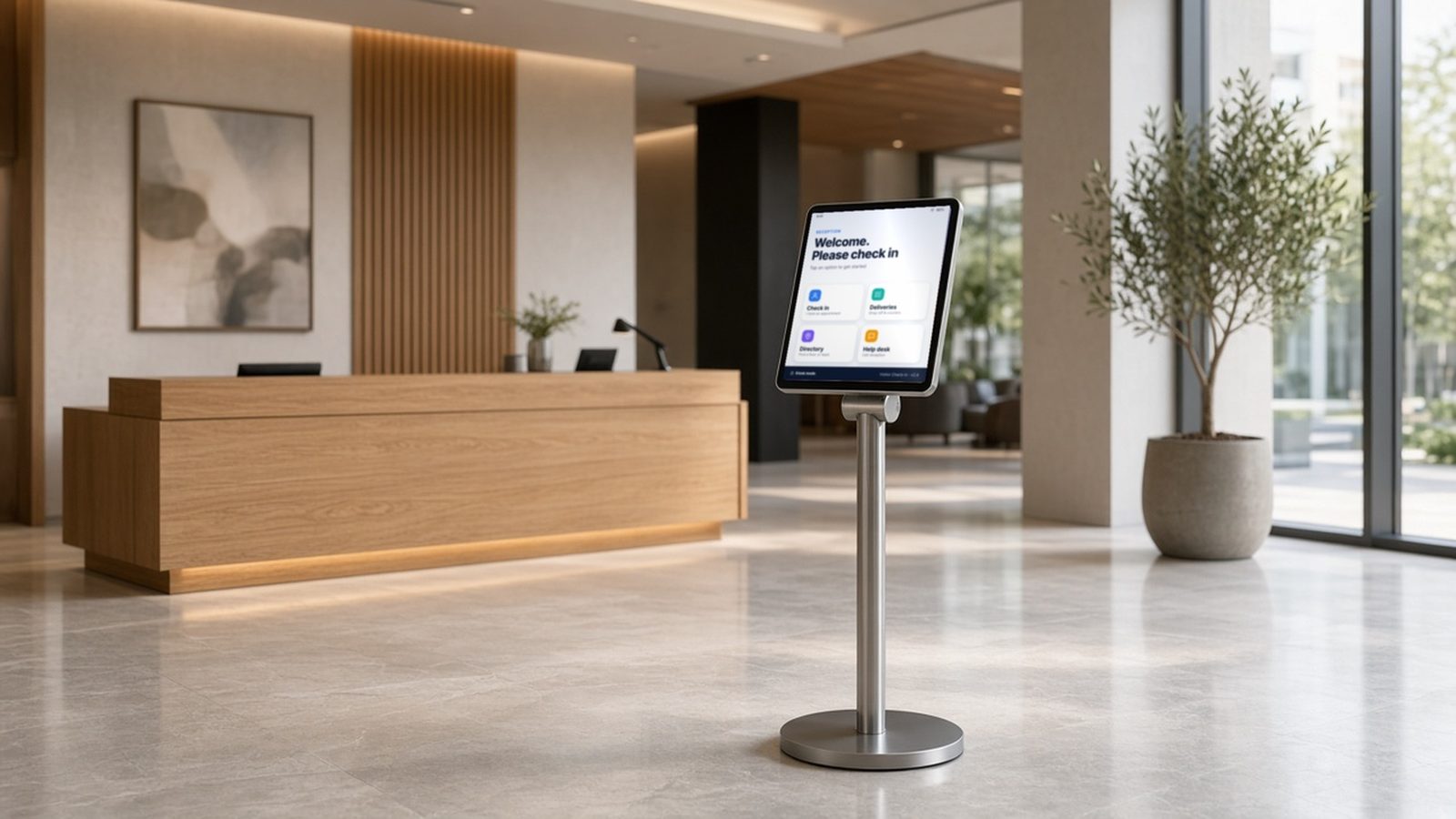
The short answer: if the devices belong to the company and have one fixed job, you usually need all three: an MDM console to run the fleet, full device-level management so policies hold, and kiosk mode so the screen stays on task. If staff use their own phones, you need a console and a work profile, and no kiosk mode at all.
Three terms, three different jobs
Quotations and product pages mix these words freely. Separating them is the quickest way to compare vendors fairly.
- Android MDM is the console. It is the tool your IT or operations team logs in to. It holds inventory, device groups, policies, app lists and remote status, and it answers: what do we own, where is it, what should it be running and is it healthy?
- Device Owner is the level of control. Android calls it a fully managed device. The management app is set up as the owner of the whole device when it is first configured, so it can enforce settings, app rules and update behaviour that an ordinary app cannot touch.
- Kiosk mode is what the screen shows. Android’s own name for it is lock task mode, and the devices it suits are called dedicated devices. The device runs one app, or a short approved list, with no home screen, no settings and no accidental exit.
Put together, the console gives the instruction, Device Owner lets Android carry it out across the whole device, and kiosk mode is the result the customer sees. A kiosk without the other two is a normal app running full screen, easy to knock out of place. A console without device-level control can watch devices but cannot always hold them in place.
Start with who owns the device and who uses it
The right setup follows from two questions: does the company own the device, and is a person or the public at the controls? This table covers the common cases.
| Your device | Management setup to ask for | Kiosk mode? |
|---|---|---|
| Customer-facing kiosk, self-order tablet or check-in screen | MDM console with full device management | Yes, one app only |
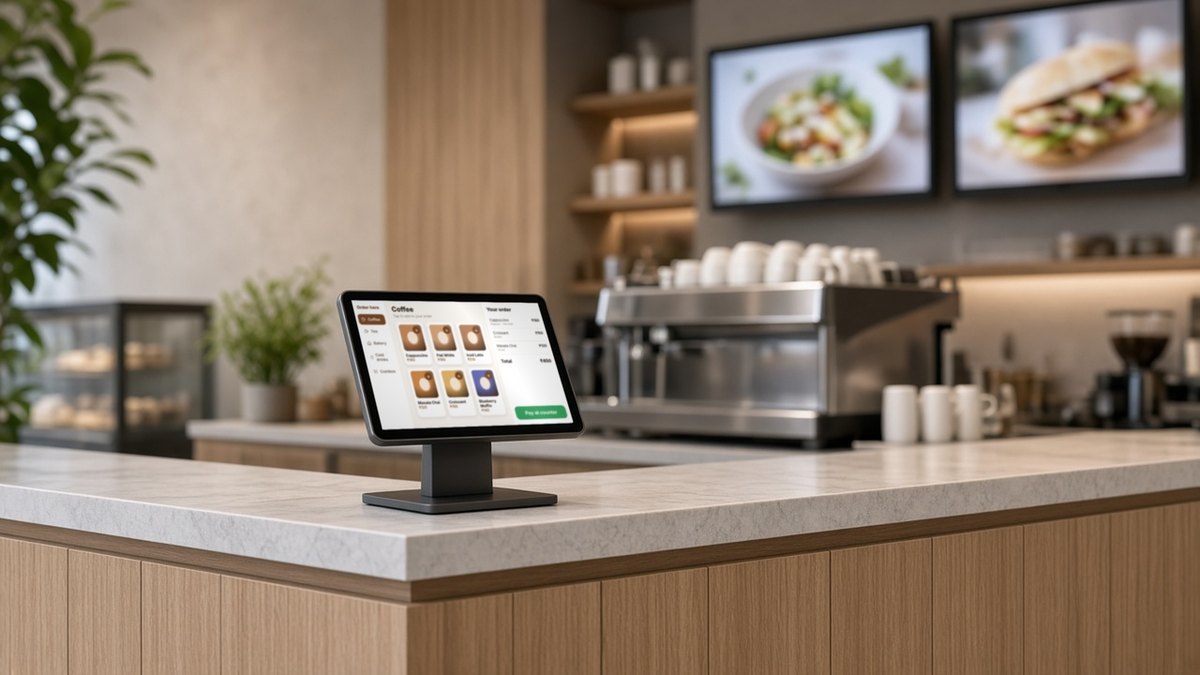
| Menu board, signage player or media box on a screen | MDM console, with boot-to-app and remote recovery | Usually yes |
| Company tablet shared between shifts | MDM console with full device management, plus a sign-in and wipe plan | Often a short approved app list |
| School or classroom tablet | MDM console with full device management and group-based policies | Sometimes, during exams or lessons |
| Staff’s own phone used for work | MDM console with a work profile | No |
| Company phone, personal use allowed | Full management or a work profile on a company device, agreed as policy first | No |
Enrollment is the decision that is expensive to reverse
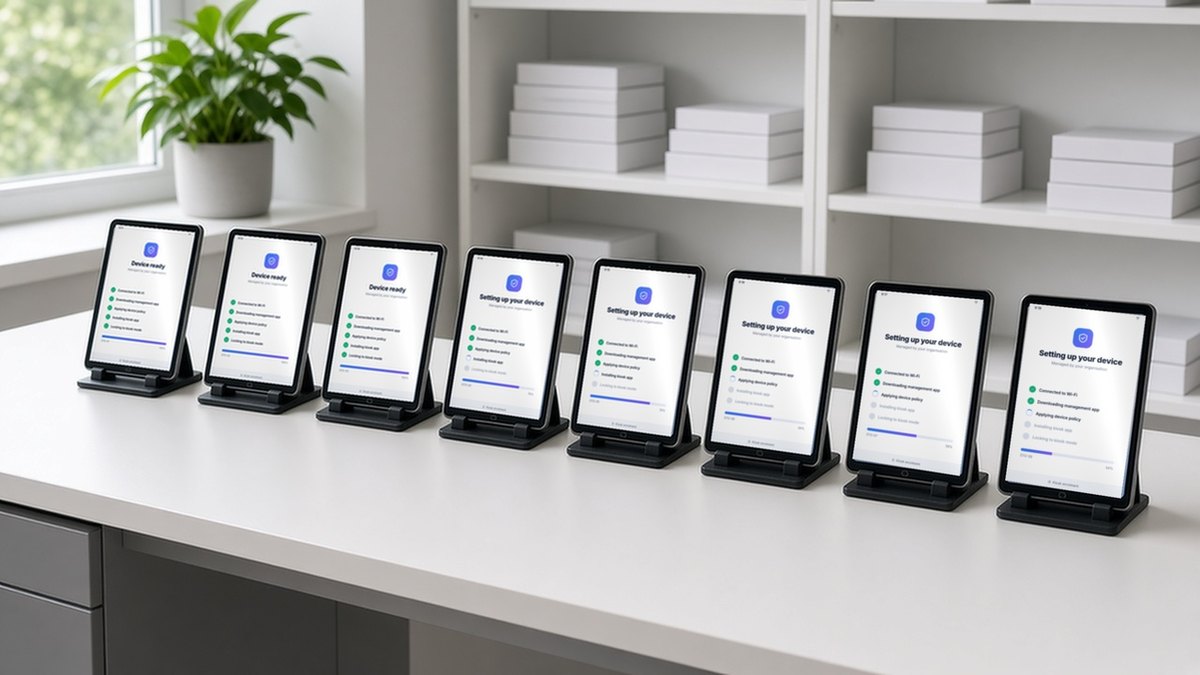
Full device management is normally set up during a device’s first-time setup. A device that is already in daily use usually has to be factory reset before it can be managed this way. So enrollment is a buying decision, not an afterthought.
The usual routes are scanning a QR code at the first setup screen, entering an enrollment code, or zero-touch enrollment for devices that a reseller has registered in advance. Which of these work depends on the hardware and its software. Before you commit, ask three things:
- Which enrollment routes does my exact device model support?
- Who stages the devices, the vendor before shipping or my own team on arrival?
- What does a branch manager do when a replacement unit arrives at a site?
The best test is simple: take a device out of its box, reset it, enroll it and time how long it takes to become ready to use. If a trained person needs ten minutes for one device, the second hundred will be a project.
What kiosk mode has to survive
A kiosk that works in the office often fails in a shop. Whatever vendor you choose, ask to see the locked screen cope with the everyday problems:
- A power cut and restart, ending back on the approved app without anyone touching it.
- The network dropping and returning.
- The app crashing or being updated.
- A customer pressing every edge, corner and button.
- An administrator leaving kiosk mode on purpose, with the exit limited to approved people.
For a full walk-through of these checks on a public screen, read Android MDM for kiosks.
The hardware decides what is possible
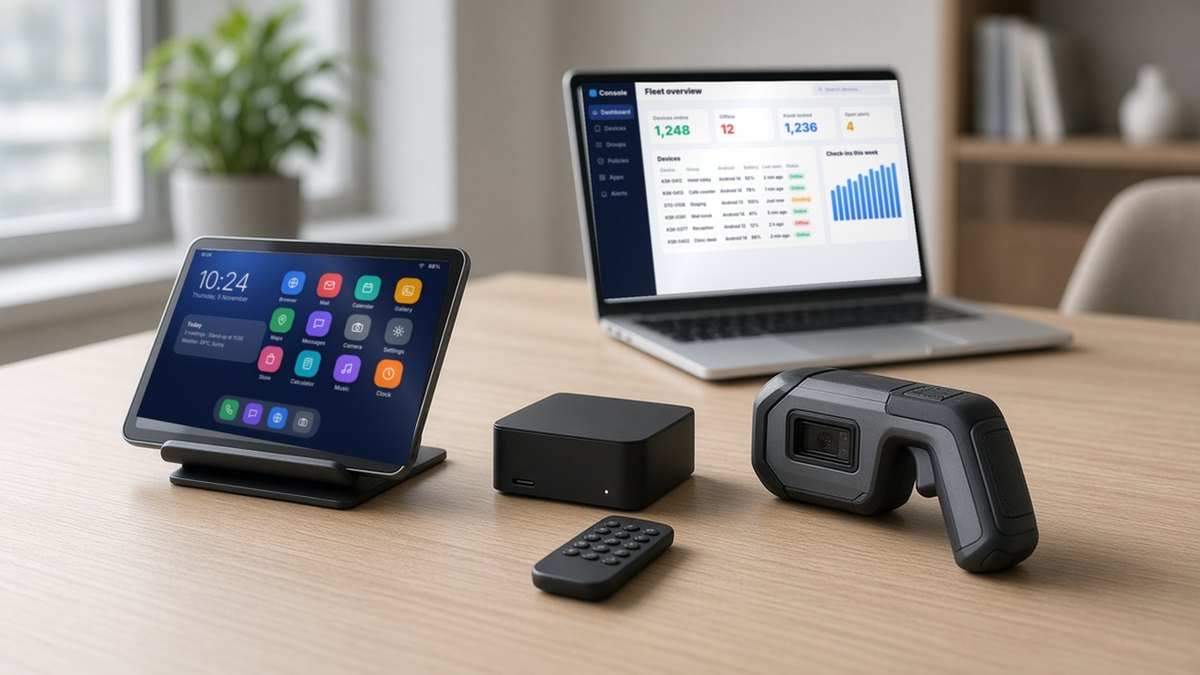
Not every Android device can be managed the same way. A phone, a tablet, a TV box and a handheld scanner can all run Android and still need different plans. Before you standardise on a model, find out:
- Whether the device ships with Google services, and which enrollment methods that unlocks. Boxes built on plain Android may use the vendor’s own enrollment method instead.
- Whether the maker supports setup at first boot, or expects the device to be managed after it is already configured.
- How long security and software updates will keep arriving, and who delivers them. See Android security updates for device fleets.
- Which Android version and build type it runs. Android OS types and versions explained covers the differences.
- For boxes behind screens, how it behaves after a power cut, since nobody is there to tap anything.
Maram supplies Android boxes and sticks and tablet PCs as well as the DCM Console, so the device question and the console question can be answered together.
Questions to ask every MDM vendor
- Which management mode does the console use on my device model, and can I see it on a sample?
- How do devices enroll, and what happens to a replacement unit?
- Can I group devices by site, role and batch, and send a change to one group first?
- What can support see before a technician is sent?
- How are app updates scheduled so they do not land during trading hours?
- How does an administrator leave kiosk mode, and who is allowed to?
- What happens to the devices if the console cannot be reached?
- What happens when a device is lost, stolen or retired?
Maram’s Android MDM, the DCM Console, is built for fleet operations: inventory, device groups, policy planning, kiosk mode and remote visibility for tablets, boxes and managed screens. For your own device model, ask Maram to confirm the management setup on a sample before you sign.
Pilot ten devices before you buy a thousand
- Pick one device model and one real use case, such as a self-order tablet or a lobby screen.
- Enroll ten units from a factory-reset state and time each one.
- Apply the kiosk settings, then run the restart, network and crash checks above.
- Push one app update to a single group and confirm the others stay untouched.
- Let a support person diagnose a fault from the console alone.
- Write down every step so a branch team can repeat it without you.
Frequently asked questions
Tell us what your devices have to do
Share the device types, the number of sites and whether the screens face customers. We will reply with the right next step for your fleet.