
Android OS Types and Versions Explained: TV, Tablet and Phone Builds, and What Changed from Android 7 to Android 16
Android is one platform, but it does not look or behave the same everywhere. A television runs a remote-driven build, a tablet runs a touch build with a larger layout, and a phone runs a portrait-first build with calling features. An Android box can run any of the three. That gives you a choice, and the right one depends on whether the screen is a signage display, an IPTV set-top box, a touch kiosk or a machine interface. This guide explains the three OS types, walks through what changed from Android 7 to Android 16, and helps you choose.
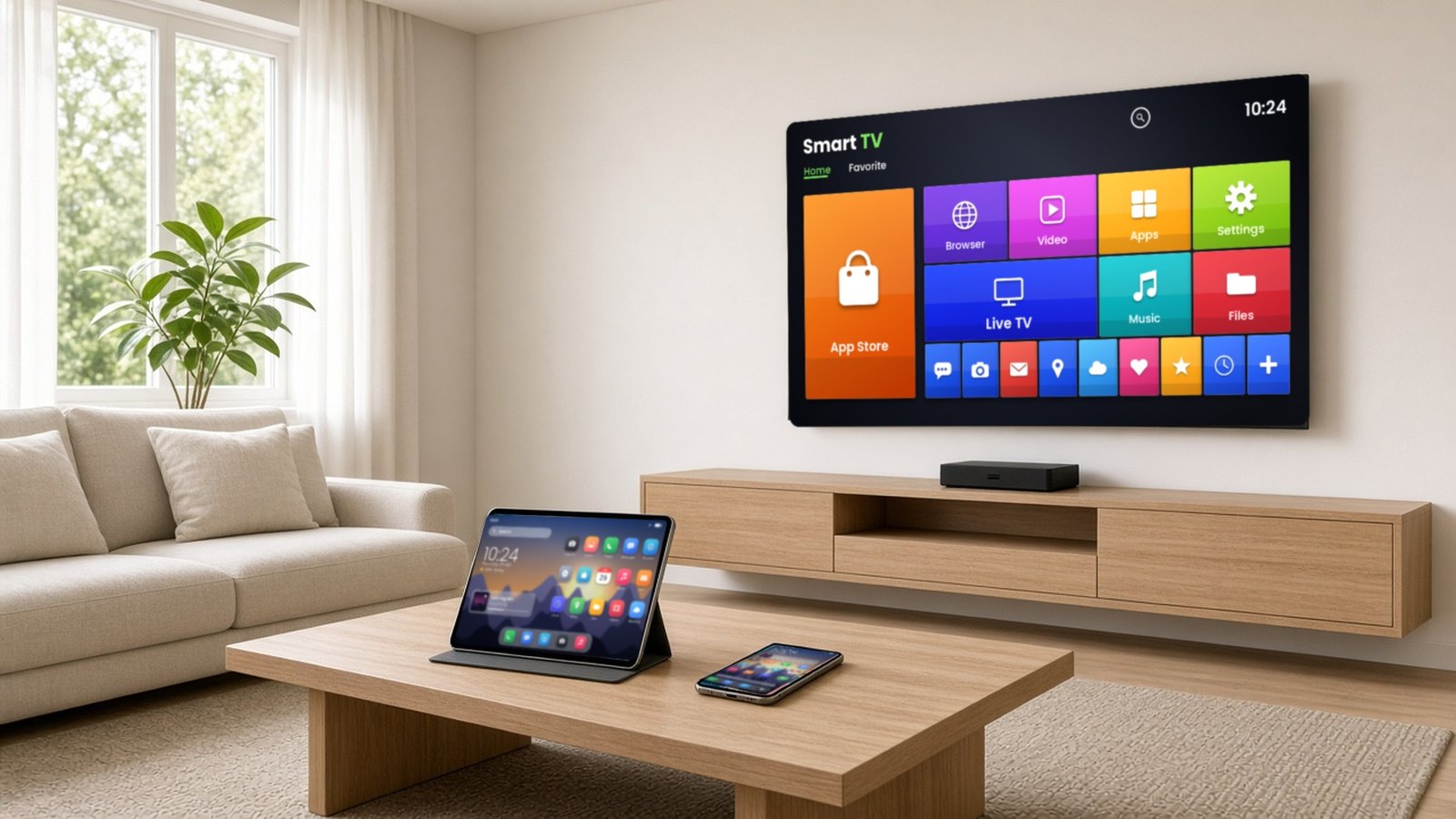
Android is one platform, built three ways
Android is an open-source operating system, and manufacturers adapt it for the device in front of the user. In practice you will meet three kinds of build.
TV builds: Android TV and Google TV-style
Android TV is Google’s version of Android for televisions and set-top boxes. Apps for it are designed for a remote control: they must work with a basic directional pad, a select button, Back and Home, and they present content in a large-screen layout. Google TV is a user experience built on top of Android TV, with a content-first home screen, and Android TV apps run on Google TV devices. Both suit IPTV, OTT, hotel TV and any screen that viewers control from a sofa or bed. Google publishes TV-specific releases of its own, for example Android 14 for TV.
Tablet builds
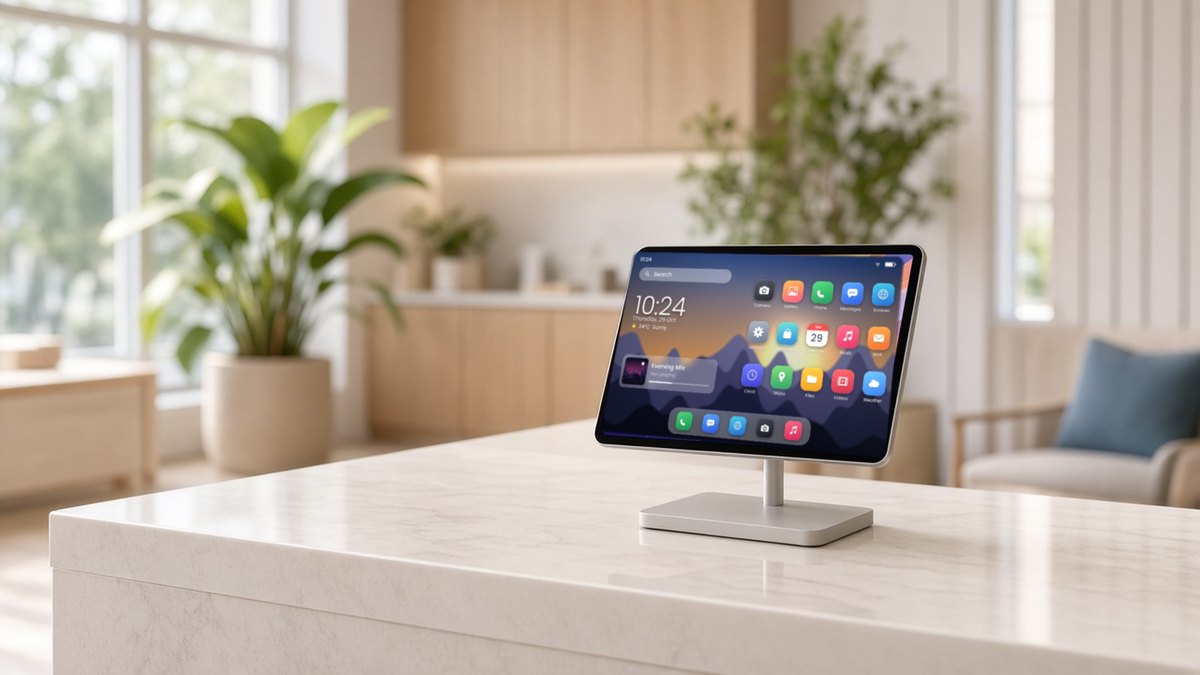
A tablet build is designed for touch on a larger screen. It has a standard touch home screen, the full range of touch apps, and layouts that adapt to landscape or portrait. It is the natural choice for interactive kiosks, check-in desks, shared tablets and machine operator panels, where people touch the screen instead of using a remote.
Phone builds
A phone build is portrait-first and includes the calling, messaging and SIM features of a phone. On a box it is used when an app is made for phones or when telephony features matter, for example a device that relies on a SIM card.
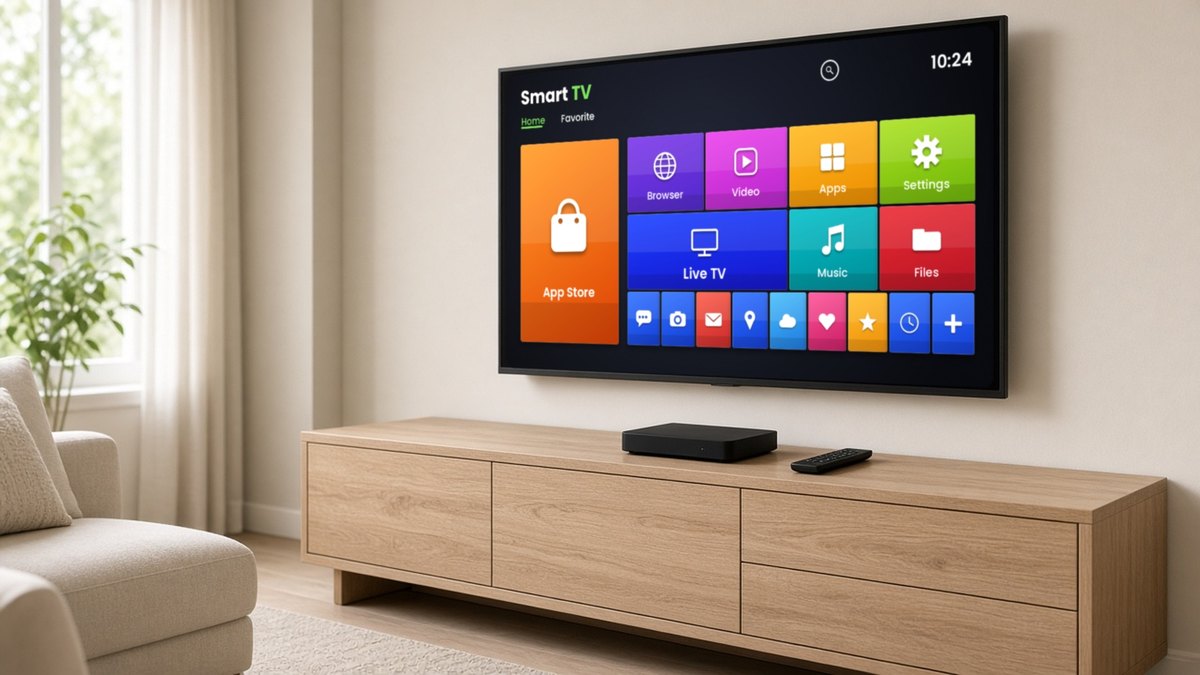
Android boxes can run all three
A box is a small computer with its own firmware. The same hardware can be given a TV build, a tablet-style build or a phone-style build, depending on the job. That is useful for businesses: one family of hardware can serve a hotel TV, a kiosk and a signage player, with the firmware changing the experience.
Maram’s custom hardware and firmware services cover launchers, boot-to-app behaviour and settings lockdown when the stock build is not enough.
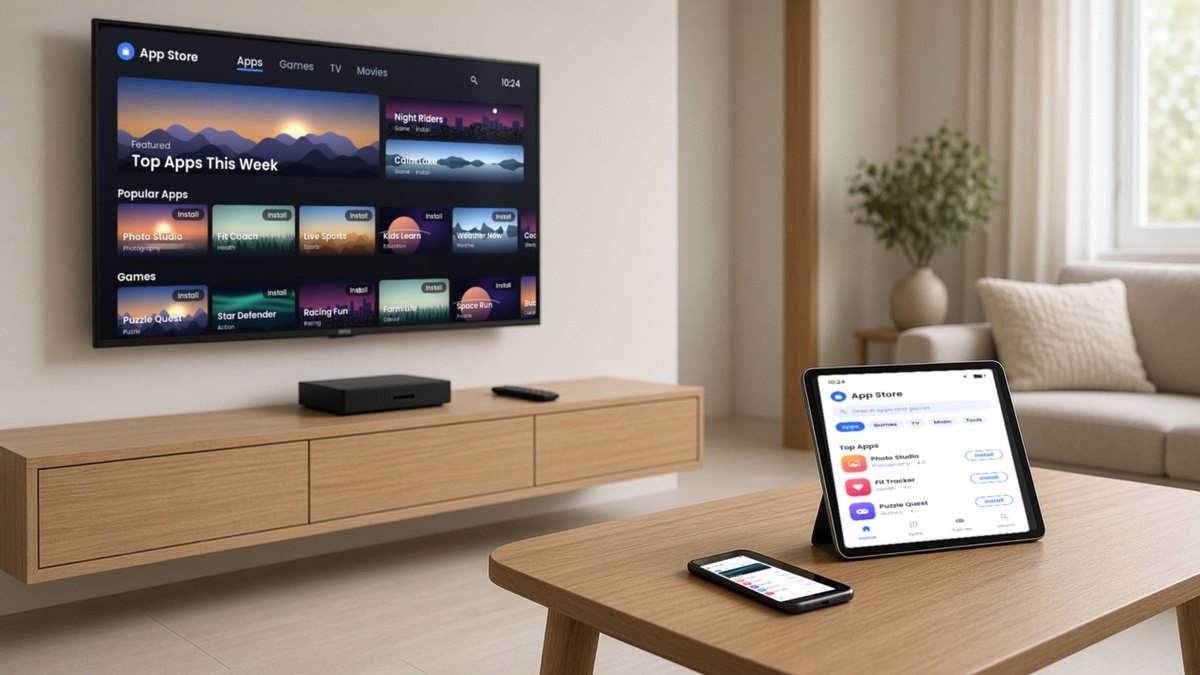
The Play Store on each build: TV apps or mobile apps
The build you choose also decides which version of the Play Store the box shows, and so which apps you can pick from it.
- TV build: the box gets the TV version of the Play Store. It shows TV-compatible apps, designed for a remote control and a big screen.
- Mobile (phone) or tablet build: the box gets the mobile version of the Play Store, with phone and tablet apps designed for touch.
In practice this shapes the choice. For IPTV and OTT viewing, the TV build and the TV Play Store apps are the natural fit, because the apps are made for a remote and a large screen. For kiosks and digital signage, or when the app you need only exists for mobile, the tablet or mobile build may suit better. If your own app is supplied directly by its provider, such as an IPTV app or a signage player, you can install it yourself and manage it with an Android MDM, so ask the app provider which build it supports.
Which Android type should you choose?
Use the job as the starting point:
- IPTV and OTT set-top boxes: choose the TV build, with the TV Play Store for TV-compatible apps. Subscribers expect a remote-driven home screen and TV apps. Read more in our guide to Android TV boxes for ISPs and IPTV operators.
- Hotel and hospitality TV: the TV build, so guests can use a remote and familiar apps.
- Digital signage players: often a tablet-style or other stripped-down build that boots straight into the player app. The TV build also works, especially when you want remote-control operation. See Maram’s digital signage CMS.
- Touch kiosks and check-in desks: a tablet-style build, which gets the mobile Play Store, locked to one app with an Android MDM.
- Machine interfaces and HMI: a tablet-style build, as with our industrial Android box for 24/7 operation.
- Phone-style apps or SIM features: a phone-style build, which gets the mobile Play Store, with a SIM-enabled box where connectivity is needed.
Android 7 to Android 16: what changed, version by version
Each release changes what apps may do, how the system handles security and how the interface behaves. The highlights below come from Google’s Android developer documentation. They matter to businesses because your apps, your MDM and your update plan all depend on the version underneath.
Android 7 Nougat (2016, API level 24)
Nougat added split-screen multi-window support, with picture-in-picture on Android TV. Doze was extended so the system saves power even when a device is moving, and file-based encryption allowed Direct Boot, so some components run before the device is unlocked.
Android 8 Oreo (2017, API level 26)
Oreo limited what apps can do in the background and required notification channels. Project Treble separated the vendor layer from the Android framework to make system updates easier for manufacturers. Android 8.0 also introduced channels on the Android TV home screen.
Android 9 Pie (2018, API level 28)
Pie turned off clear-text HTTP by default for apps targeting it, so apps must use HTTPS unless they allow specific exceptions. It also added gesture navigation, display cutout support, restrictions on non-public system interfaces and Private DNS.
Android 10 (2019, API level 29)
Android 10 introduced scoped storage, which limits access to shared files, plus a system-wide dark theme and limits on starting activities from the background. It also restricted apps from reading hardware identifiers such as IMEI and serial number, which affects how management apps identify devices. Google began naming releases by number only.
Android 11 (2020, API level 30)
Android 11 added one-time permissions for location, microphone and camera, automatic permission reset for unused apps, and package visibility rules that limit which other apps a program can see. Scoped storage became mandatory for apps targeting it, and wireless debugging arrived.
Android 12 (2021, API level 31)
Android 12 brought the Material You design, approximate location choices, camera and microphone indicators and new Bluetooth permissions. Apps must declare explicitly whether components are exported, and exact alarms need permission. Android 12L followed in 2022 with large-screen improvements for tablets and foldables.
Android 13 (2022, API level 33)
Android 13 made notifications a runtime permission, so apps must ask before posting them. It added per-app language settings, a system photo picker and themed icons.
Android 14 (2023, API level 34)
Android 14 required every foreground service to declare its type, denied exact alarms by default for newly installed apps that target Android 13 or higher, and blocked new installs of apps that target very old API levels (below 23).
Android 15 (2024, API level 35)
Android 15 enforced edge-to-edge layouts for apps that target it, added time limits for some foreground services, restricted boot-completed receivers from starting certain foreground services, introduced Private Space, and added support for devices that use 16 KB memory pages.
Android 16 (2025, API level 36)
Android 16 removed the option for apps that target it to opt out of edge-to-edge layouts and turned predictive back navigation on by default. On larger screens (600 dp wide or more), it ignores orientation and resizability restrictions for apps that target it, so apps must adapt to any window size.
Google released Android 17 in June 2026. Box and signage firmware usually follows phones, so choose the version that your app and your supplier support today rather than the newest number.
What the version jump means for a business box
- Security. Older releases no longer receive security updates from Google. A box on a very old version is a growing risk on your network. See Android security updates for device fleets.
- App support. Newer apps and app stores assume newer platform levels, so an old version can lock you out of apps you want to run.
- Background and boot behaviour. Since Oreo, Android has limited what runs in the background. Signage and kiosk apps need to be written for the version they run on, and tested after a power cut.
- Permissions and storage. Scoped storage, one-time permissions and notification permissions changed how apps behave. An MDM can pre-approve many of these on managed devices.
- Large screens. Android 16 expects apps to adapt to any window size. For signage on big displays, test layouts rather than assume.
Maram’s HORON H15 Plus is a 4K Android 15 TV box, for example, which suits IPTV and hospitality programmes. Ask about the Android version of any other box configuration at quotation.
Chipsets and the Android version you can run
Most Android boxes are built on chipsets from Amlogic, Rockchip or Allwinner. The chipset largely decides which Android versions a box can run and for how long its firmware stays supported, so ask your supplier for the version and update plan, not only the processor name. For an industrial example built on Rockchip chipsets, see our article on the industrial Android box for 24/7 operation.
A short checklist before you choose
- Name the job: IPTV, signage, kiosk, machine interface or something else.
- Pick the OS type that matches how people use the screen: remote, touch or phone-style.
- List the apps you must run and check the Android version each one supports.
- Decide which apps you need from the Play Store: TV-compatible apps point to the TV build, and phone or tablet apps point to the mobile or tablet build.
- Ask who builds firmware updates for the box and how long they will do so.
- Test a sample with your own app, including a power cut and a network drop.
Frequently asked questions
Not sure which Android build your project needs?
Tell us the job: signage, IPTV, kiosk or machine interface, the apps you run and the screens you use. We will recommend a build and send sample and quotation details.