
Android MDM for Student Tablets: Lockdown, Exam Sessions and Remote Management for Schools
A student tablet that can open any app, change any setting and disappear from sight is not a teaching tool. It is a support queue. School IT needs the device to stay on the lesson, offer only approved apps, hold a predictable experience during exams, and be visible from a console when a classroom reports a problem. This guide looks at that job — lockdown and kiosk mode, app allow-lists, exam sessions, content restrictions and remote management — and how Maram’s DCM Console, School ERP and classroom hardware fit around it.
Student tablets need a policy, not only a passcode
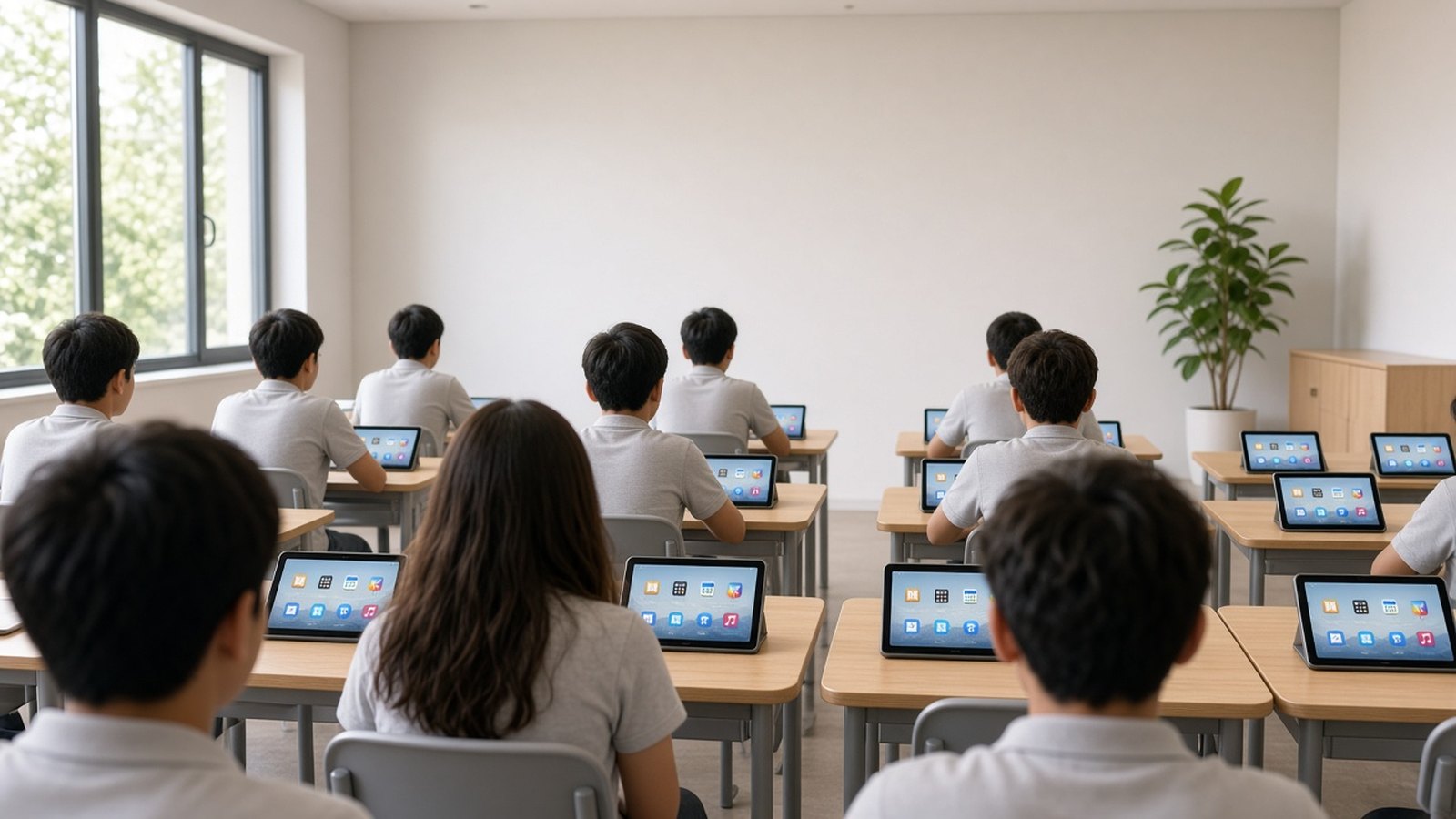
School tablet programmes often start well: devices are unboxed, a lesson app opens, and a class takes a photo for the newsletter. The trouble arrives later. A shared cart comes back with games installed. A 1:1 tablet still has yesterday’s paper open in another app during a test. A device is reported “not working,” and no one can tell whether it is offline, mis-enrolled or sitting in the wrong cupboard. A passcode on the lock screen does not solve those problems. A management model does.
This article is about that model on student tablets. It is not a primer on the difference between Android MDM, Device Owner and kiosk mode — that comparison is already in our MDM, Device Owner and kiosk mode guide. Read that if you are still sorting out the terms. Here, the question is what school IT actually needs the tablet to do, and which DCM Console capabilities support that work.
Lockdown and kiosk mode on a school tablet
A device used as a classroom tablet should not behave like an open consumer handset. That is true for a shared cart that ten classes touch in a week, and for a 1:1 tablet that goes home in a bag. In both cases, the student should meet a predictable home screen: the lesson tools, and not a store, a settings tree, or last period’s distractions.
Maram’s DCM Console is Android MDM software for fleets that include education tablet programmes. It includes kiosk and controlled-mode readiness, so teams can plan locked or guided Android experiences for shared terminals and classroom tablets. Policy planning covers launcher expectations and recovery routines, not only a one-time lock at install. The aim is a device that returns to the same experience after a restart, a charge, or a student who has tried the corners of the screen.
Write down what “locked” has to survive in your school: the period bell, a forced reboot, a tablet that was left on a charger, and the first class on Monday. If those cases are not in the pilot, they will appear in the first term. For how kiosk behaviour is specified more generally, see Android MDM for kiosks. For shared classroom displays rather than student tablets, the planning notes in smart classroom touch frames cover lockdown on panels and teaching surfaces.
App allow-lists, in plain terms
Teachers rarely need a full app catalogue. They need a short, approved list: the lesson app, perhaps a browser or a files tool, and nothing that turns the tablet into a games machine. Buyers often call this an allow-list. On the DCM product page, the same idea is described as app availability and approved applications — part of policy management, alongside restricted experiences and configuration rules.
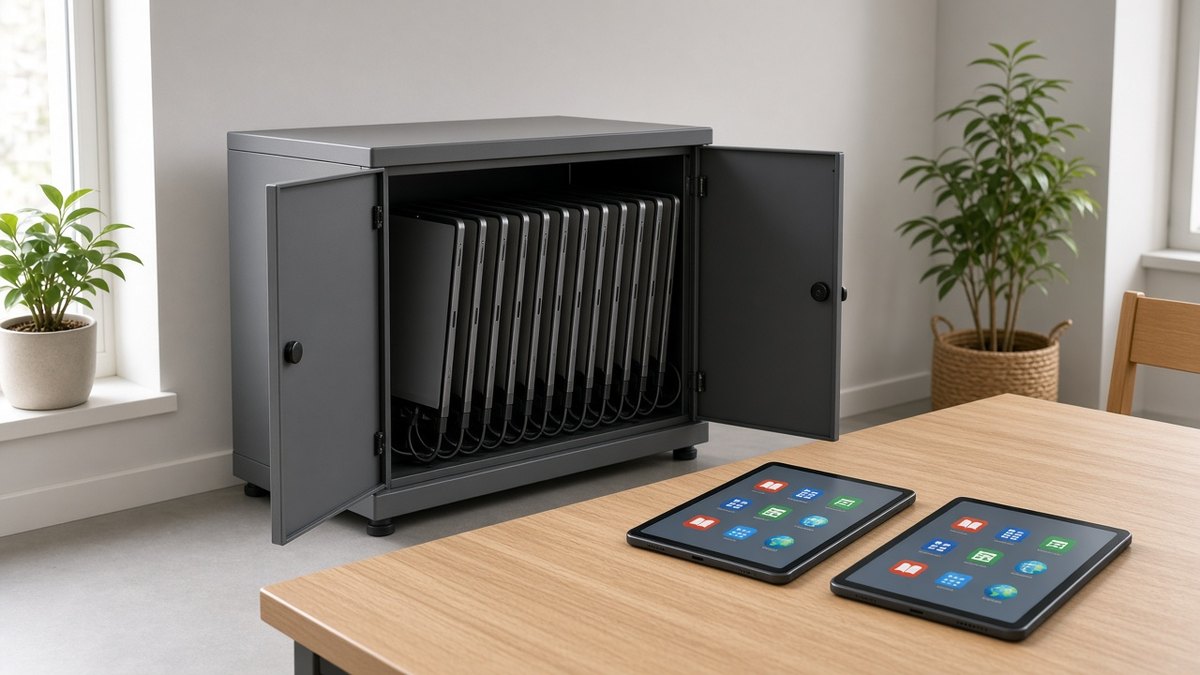
Grouping makes this usable at school scale. Devices can be organised by campus, class, cart or use case, so a Year 4 shared set and a senior exam cohort do not have to carry the same app list. When the set needs to change, group-based rollouts and update windows are there so the change is controlled, rather than visited tablet by tablet. Plan those windows around the school day, not only around the IT team’s calendar.
Exam and test sessions
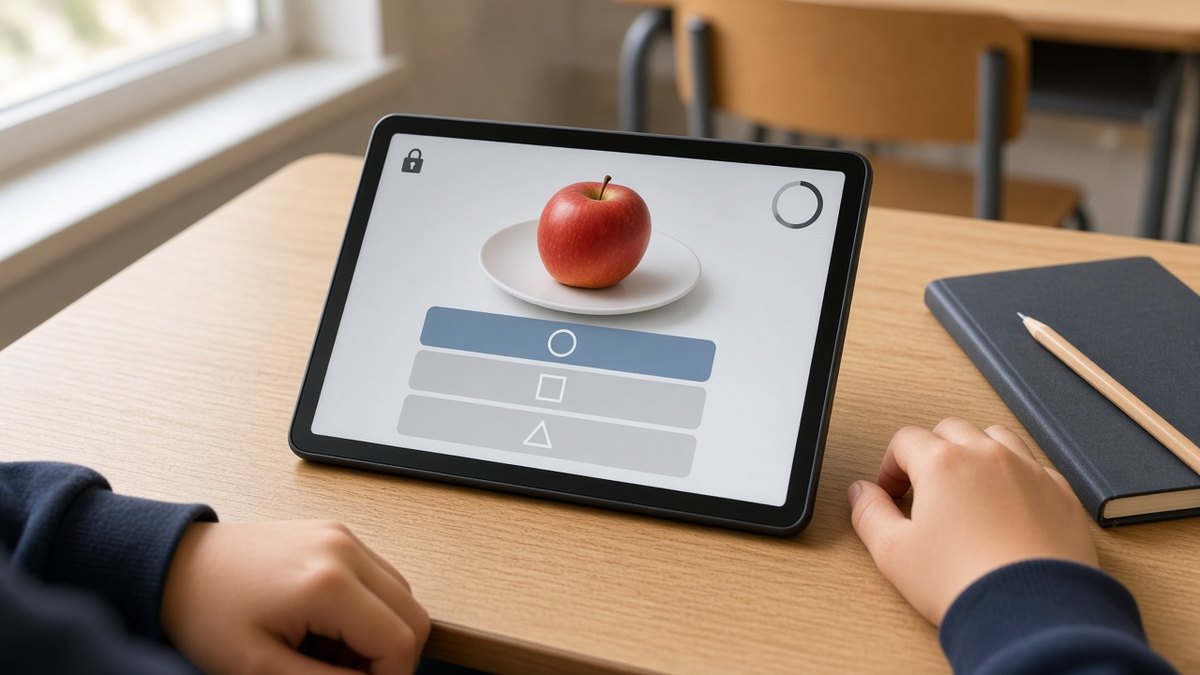
Schools often ask for “exam mode.” It is a fair request: for the length of a test, the tablet should open the assessment app, and nothing else. It is also a place to be precise about the product. DCM Console’s public product page does not describe a separately named exam-mode button. What it does describe is kiosk and controlled experiences, app availability, grouping, and recovery routines. That is the set most schools actually use to run a test session.
In practice, an exam session is a policy set you can apply to a group and then take off again. Before the paper starts, the cohort’s tablets are locked to the assessment app and other apps and settings are held back. After collection, the devices return to the normal classroom allow-list. Recovery matters as much as the lock: a tablet that restarts mid-exam should come back to the same controlled experience, not to an open launcher. Agree the timing with the exam timetable, and test the start, a mid-session restart, and the return to lessons, on a small group before a whole year sits down.
The timetable itself usually lives in school management software, not in MDM. Maram’s School ERP includes timetables and academic schedules, which helps the office plan the day. The lock on the tablet is still an MDM policy. Keep those two jobs distinct, and then make sure the people who own each one talk before exam week.
Content restrictions, without over-promising
Schools also want to limit what students can open: not only apps, but sometimes the wider content those apps can reach. DCM supports restricted experiences, usage boundaries and approved applications, and that is the right starting point. Keep the tablet on the tools you have chosen, in a locked or guided launcher, and you already remove a large class of problems.
What the product page does not claim is a built-in web filter, safe-search switch or site-by-site content block list. If your school needs network-level filtering, treat that as a separate IT decision — a school firewall or filter — and do not assume the MDM console will replace it. Be equally careful in the other direction: an open browser on an otherwise locked tablet is not a restricted experience. Decide, for each group, whether a browser is on the allow-list at all, and test that decision the way a student actually uses the device.
Remote management for school IT
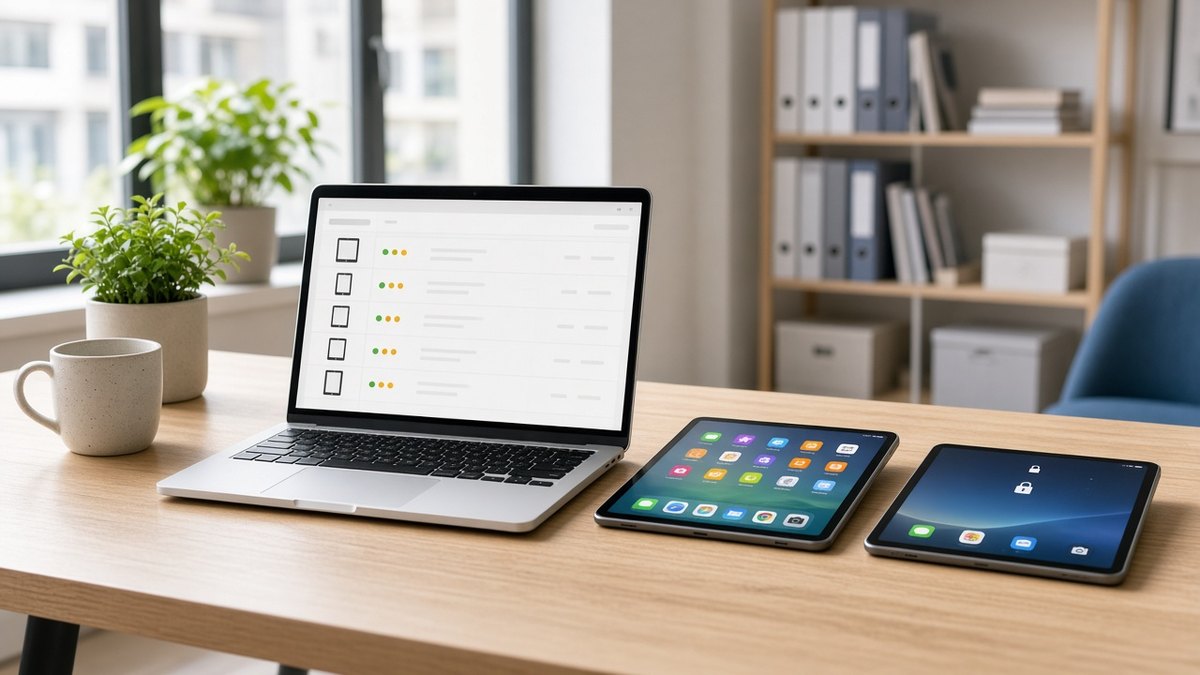
When a teacher says a tablet is not working, the first problem is often ambiguity. Is it offline, in the wrong group, running an old app set, or simply not charged? DCM is built to give support and administrators status context before anyone walks the building. Device inventory organises endpoints by site, role, status and operating context. Remote visibility is there so a ticket starts with that context, not with a blank conversation. A reporting foundation supports status review and exception follow-up over the term, not only on the morning of a fault.
Role-aware console access matters in a school as much as in a multi-site retailer. Administrators, operators and support can have different permissions, so a coordinator can work within boundaries without holding the keys to the whole fleet. Support handover structure is there so the person who enrolled the cart is not the only person who can explain it in week six. None of this replaces a labelling and charging routine in the classroom — it makes that routine visible when something is missing or mis-assigned.
How MDM sits with School ERP and classroom hardware
MDM is not school administration, and school administration is not device control. Maram’s school management software is an ERP-style platform for attendance, fee workflows, timetables, parent and staff communication, and reporting. It also includes smart-classroom integration and device-programme alignment, so a school that is planning tablets is not treating the office system and the classroom hardware as unrelated projects. When fleets grow, the same page points to DCM Console to keep those Android devices policy-ready and supportable.
That pairing is the clean model: School ERP for the school day, DCM for the tablets, and, where the campus also has announcement screens, the Digital Signage CMS for those displays. Interactive teaching surfaces are a third hardware class; plan them with the touch-frame guide above, and with managed Android tablets when you are choosing the student devices themselves. A broader hardware checklist is in the industrial Android tablet fleet guide, and a wider management-mode discussion is in Android Enterprise MDM for fleets. For the administration product on its own terms, start with the School ERP buyer guide.
Pilot a class set, then write the standard
Do not scale a messy cart. Ten devices, one class, and a short list of tests will tell you more than a feature matrix: enroll and lock, change the allow-list, run an exam-style session, restart mid-session, report a missing tablet, and open the console as support. When that path is boring, document the naming, the groups, the charging routine and the escalation path, and only then order the next cupboard. Maram can help map that operating model onto DCM, and onto School ERP when the office and the classroom should be planned together.
Frequently asked questions
Planning MDM for a school tablet fleet?
Tell us how you issue tablets, which apps must stay available, and how exams and support should work. We will show you how Maram’s DCM Console, and optionally School ERP, fit that operating model.