
Hospital and Clinic Queue and Token Displays: OPD, Pharmacy, Lab and Billing
A busy OPD, a pharmacy window or a billing counter runs more smoothly when patients can see where they stand in the queue. Token and queue displays show the number being served, where to go and what comes next, and the same screens can carry department hours, lab instructions and visitor guidance. This guide explains how these screens work across a hospital or clinic, what to look for in the player, the screen and the CMS schedule, and which questions to ask before you order hardware for every floor.
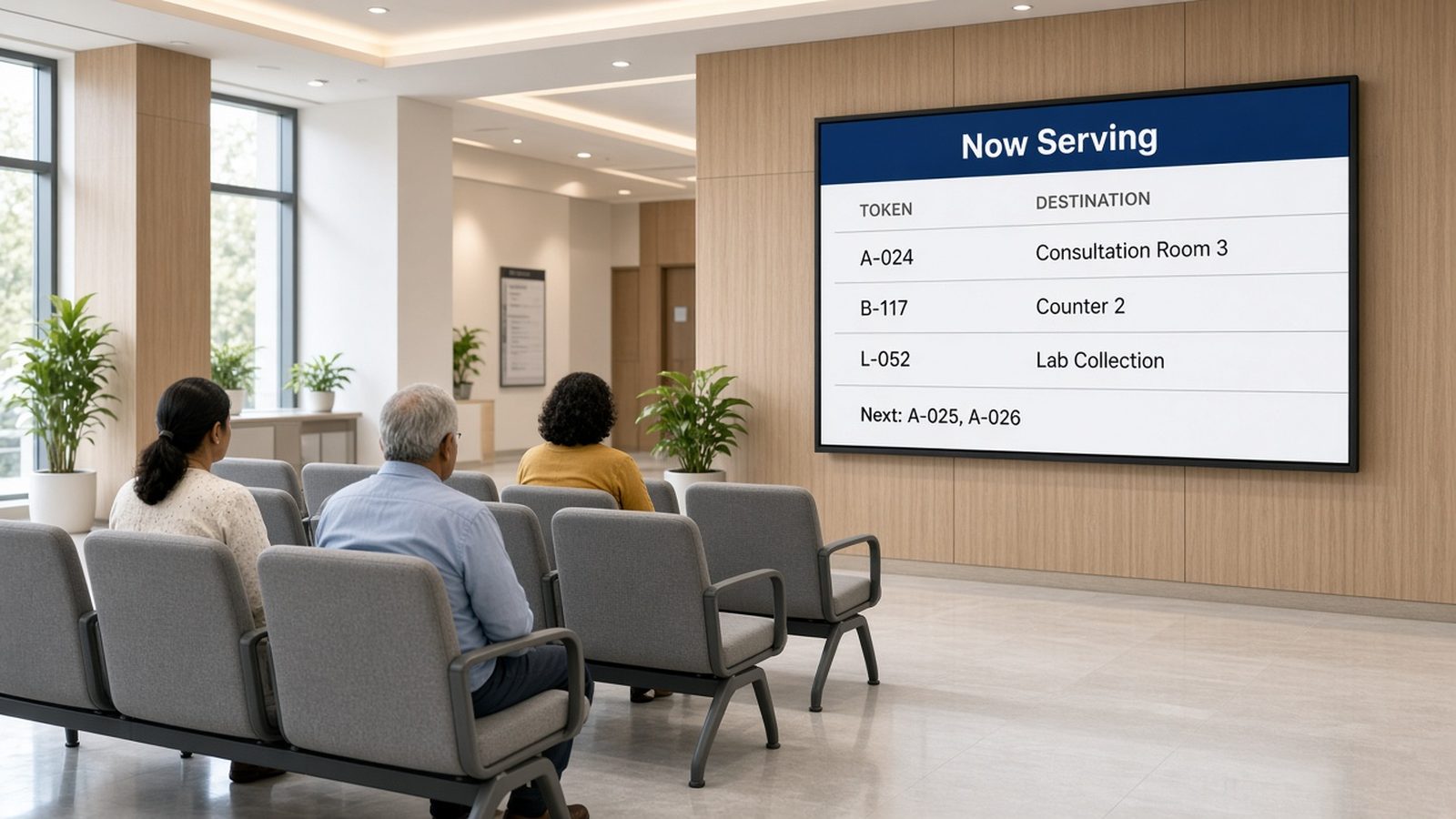
What a queue screen actually has to do
A patient who can see their token on a screen sits down and waits. A patient who cannot keeps walking up to the counter to ask. That is the whole case for queue and token displays in a hospital or clinic: fewer interruptions at the desk, a calmer waiting area, and staff who can call the next patient instead of answering the same question repeatedly.
A good queue screen does three jobs at once. It shows the token being served and where to go, such as a consultation room, a counter or a sample-collection bay. It shows what is coming next, so people know roughly where they stand. And it uses the rest of the screen for useful information: department hours, visitor rules, what to bring to the lab, or how to pay at billing. The first job comes from your queue or token system. The second and third are where a digital signage CMS earns its place.
How token and queue displays work
Most hospital queue setups have the same basic parts, even when the products differ:
- A way to issue tokens. A registration desk, a self-service kiosk with a printer, or an appointment record that assigns a number.
- A way to call the next token. A doctor, pharmacist or counter clerk presses a button or clicks in an application when they are ready.
- A screen in the waiting area. A commercial display driven by a small media player that shows the current and next tokens for that area.
- Everything else on the screen. Notices, hours, directions and health information, scheduled by department and time of day.
The link between the token system and the screen is the part to check most carefully. Some token systems drive their own dedicated display. Some can pass the current number to another screen. Some hospital information systems handle tokens inside the OPD workflow and offer their own display page. Before you choose hardware, ask your token or HIS vendor and your signage provider, in the same meeting, exactly how the number reaches the screen, how quickly it updates, and what the screen shows if that link drops.
Where queue screens go, and what each area needs
Departments use screens differently. Plan each one rather than copying one layout across the building.
- OPD waiting halls. Usually the busiest screens. Patients for several doctors share one hall, so the layout needs a clear list: token, room or doctor, and the next few numbers. A second zone can carry OPD timings, which doctors are available today and general guidance. Large halls may need more than one screen so people at the back can read it.
- Pharmacy counters. The useful split here is ready for collection versus being prepared. Patients who can see that their medicines are not ready yet will sit down instead of crowding the counter.
- Laboratory and sample collection. Lab screens can show the token for the next collection bay along with plain instructions, for example fasting rules or where to hand in a sample. Instructions that change by time of day are a natural fit for scheduled content.
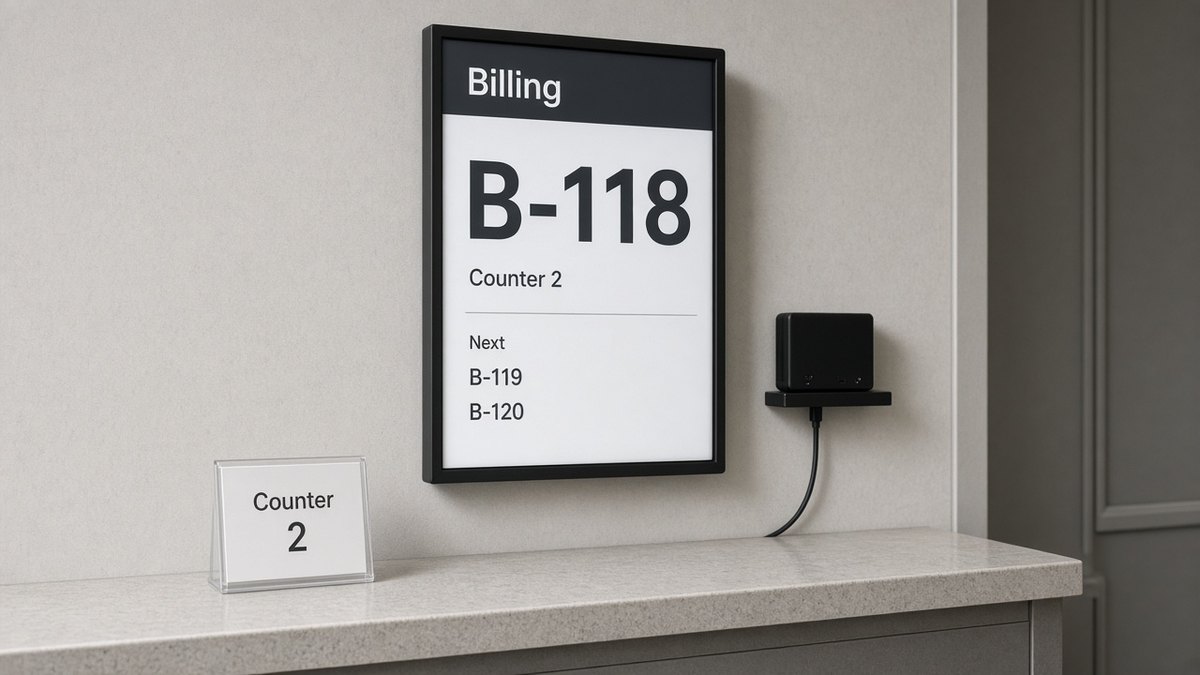
- Billing, insurance and discharge desks. Often a counter-by-counter view. A portrait screen above each counter, or one landscape screen for the whole bank of counters, both work if the token and counter number are large enough to read from the seats.
- Diagnostics, radiology and day-care areas. Smaller waiting spaces often need a simple now-serving view and a short list of department guidance.
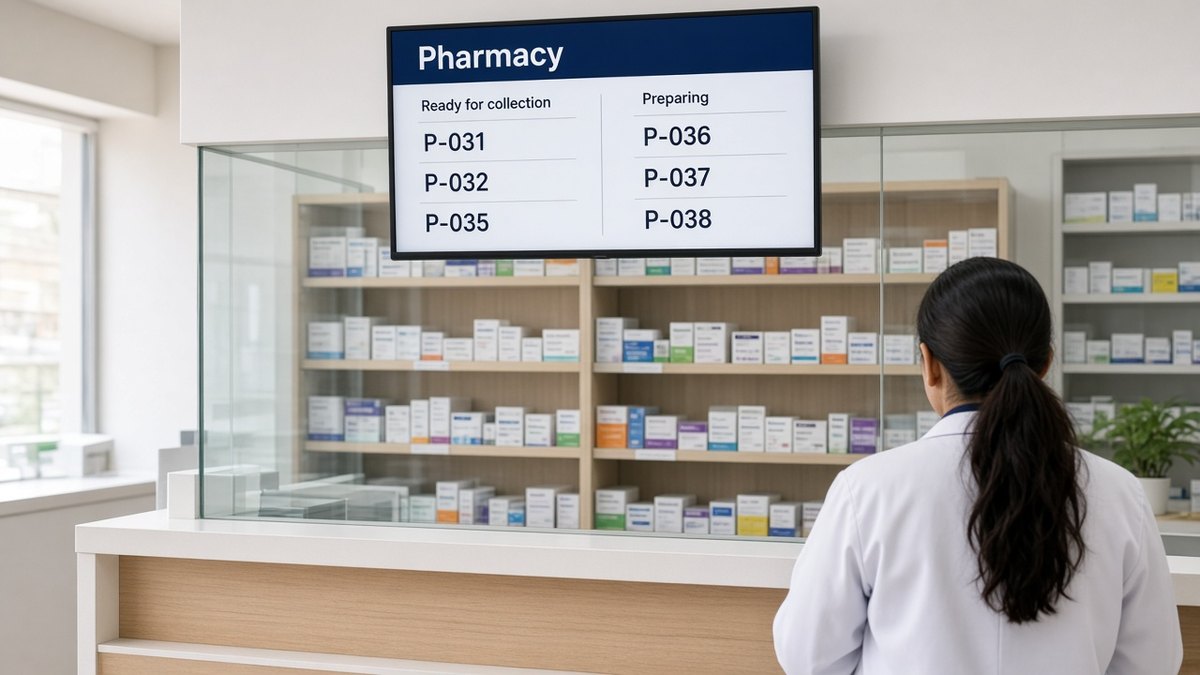
Whatever the department, settle a few rules early. Decide whether screens show token numbers only or names as well. Many hospitals show numbers only, so the waiting area does not display who is being treated. Agree which languages the information must be in for your patients, and check that the layout handles them cleanly at reading distance. Keep the token area in the same place on every screen so patients learn where to look.
What to look for in the player
The media player behind the screen decides whether the display is still running at 7 a.m. after a night of power cuts. Our Android boxes and sticks are planned around exactly this kind of always-on business screen. When you compare players for a hospital, check:
- Auto-start on boot. When power returns, the player should go straight back into the signage app without anyone touching a remote.
- A locked player. Staff and visitors should not be able to exit to a home screen, open other apps or change settings. Kiosk-style playback and, where needed, Android MDM (DCM Console) keep each player on its job.
- Recovery and offline playback. If the network drops, the scheduled content should keep playing from local storage. Ask what the token area shows during an outage, because that part depends on a live link.
- Wired network where it matters. Ethernet is the safer default for OPD and pharmacy screens. Wi-Fi in hospitals can be crowded, and some areas have weak coverage.
- Remote visibility. IT should be able to see whether each screen is online and playing, rather than finding out from a complaint at the desk.
- Time keeping. If the layout shows a clock or time-based content, ask whether the player keeps accurate time when the network is down. A hardware real-time clock is an option on some units, not every model, so confirm it for the unit you are buying.
- Heat and mounting. Players often sit behind a screen or above a false ceiling. Plan airflow, a labelled power point and a spare unit for quick swaps.
For screens that run long hours, the reasoning in choosing an Android box for 24x7 use applies directly, and the Android TV box buyer guide covers ports, storage and Video out in more detail.
Choosing the screens
The right screen depends on the room, not the catalogue. A few practical checks:
- Reading distance. Stand in the farthest seat and check that a token number and room name are easy to read at the size you plan. If not, use a bigger screen, a bolder layout or a second screen.
- Commercial use. Waiting-area screens stay on through OPD hours and often longer. Commercial displays are built for long running hours. Domestic televisions often are not, and some warranties exclude business use.
- Brightness and glare. Lobbies with glass fronts need a screen and a position that stay readable in afternoon light.
- Orientation. Landscape suits lists and two-zone layouts. Portrait suits single counters and narrow walls. Confirm the player and layout support portrait before mounting.
- Safe mounting. Use proper wall or ceiling mounts, keep cables out of reach and plan service access.
Our guide to digital signage display types compares wall screens, standees and other formats if you are also planning wayfinding or lobby screens.
CMS scheduling: the rest of the screen
The token area changes every few minutes. The rest of the screen changes by department, by day and by time, and that is what the CMS manages. Maram's Digital Signage CMS is built around the parts a hospital communications or admin team will use:
- Zone layouts. The composition studio lets you design a layout with separate regions, for example a token region, a notices region and a branded header, so the hospital's look stays consistent across floors.
- Screen groups. Group screens by building, floor or department, such as OPD Block A, Pharmacy or Lab, and publish to the right group instead of to every screen.
- Playlists and calendar scheduling. Show OPD timings in the morning, visitor guidance in the evening, and a health-awareness campaign for a set number of weeks, all planned in advance.
- Role-based publishing. Let a department coordinator update their own screens while brand or administration teams control the shared layout.
- Proof-of-play and screen health. See what played and which screens are online, instead of sending someone to walk the floors. Our article on proof-of-play and screen health explains how to use these reports.
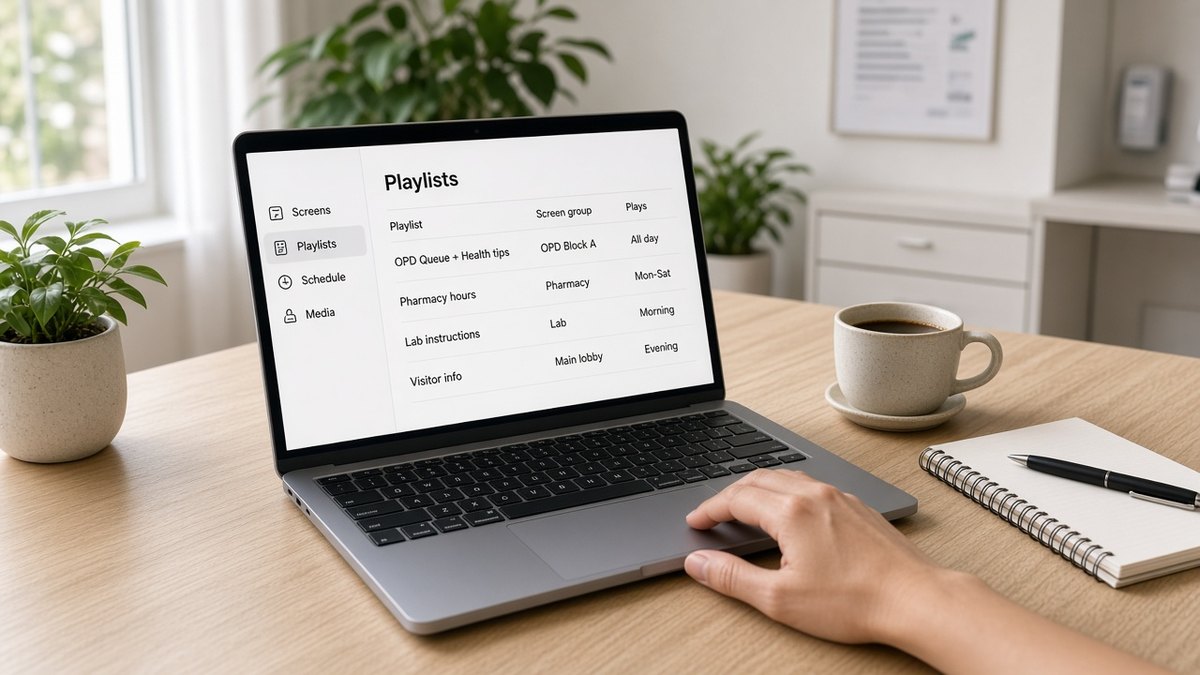
Keep the content plain. Patients in a waiting hall are tired, worried or looking after someone. Large text, short lines, a calm palette and nothing that flashes will do more than motion graphics. Time-based scheduling works here the same way it does for daypart menu boards: decide what each screen should say at each part of the day, then let the schedule do it.
Questions to ask before you buy
Bring these into vendor meetings. Clear answers now prevent surprises after the screens are on the wall.
- How does the token number reach this screen from our token system or HIS, and who supports that link?
- How quickly does a called token appear, and what does the token area show if the link drops?
- Does the setup include audio calls or chimes, and is that part of the token system or the screen?
- What patient information, if any, leaves the hospital network, and where is it stored? Can we limit screens to token numbers only?
- Do we need the CMS hosted in the cloud or inside our own network? Ask what each option involves. Our guide to cloud vs on-premise signage CMS sets out the trade-offs.
- Who can publish to which screens, and is there a record of changes?
- How are players updated, and how is a failed player replaced and re-enrolled?
- What does a pilot cover, and what has to work before we expand?
A wider list for comparing CMS platforms is in our digital signage CMS buyer checklist.
Start with one area
The safest rollout starts small. Choose one OPD block and its pharmacy, install the screens, connect the token source and run it for a few weeks. Check readability from the seats, behaviour after a power cut, how quickly tokens update, whether staff find publishing easy and whether the desk gets fewer queue questions. Write down the screen sizes, mounting, network points and layouts that worked, then roll them out floor by floor. The same discipline is set out for retail in our signage rollout guide, and it carries over well to hospitals and clinic chains.
Frequently asked questions
Planning queue screens for a hospital or clinic?
Tell us the departments, the number of screens, the token or HIS system you use today and how your network is laid out. We will help you plan the players, the layouts and a pilot for one area. Call +91 8125 703 703 or write to info@maramtechnologies.in.
Related reading and solutions
- Digital Signage CMS
- Android boxes and sticks
- Android MDM (DCM Console)
- Embedded systems and firmware development
- Cloud vs on-premise digital signage CMS for India
- Digital signage CMS buyer checklist
- Proof-of-play and screen health
- Digital signage display types
- Android boxes for 24x7 use
- Android TV box buyer guide
- Contact Maram Technologies